Separate the app from connection details
After purchasing the app, you still need to import your existing subscription or server details. This site explains how to use the app; it does not provide servers or subscriptions.
A rule-based proxy client for iPhone and iPad, available as a one-time purchase on the App Store. Start by importing an existing subscription, then check the mode, rules, and connection results.
After purchasing the app, you still need to import your existing subscription or server details. This site explains how to use the app; it does not provide servers or subscriptions.
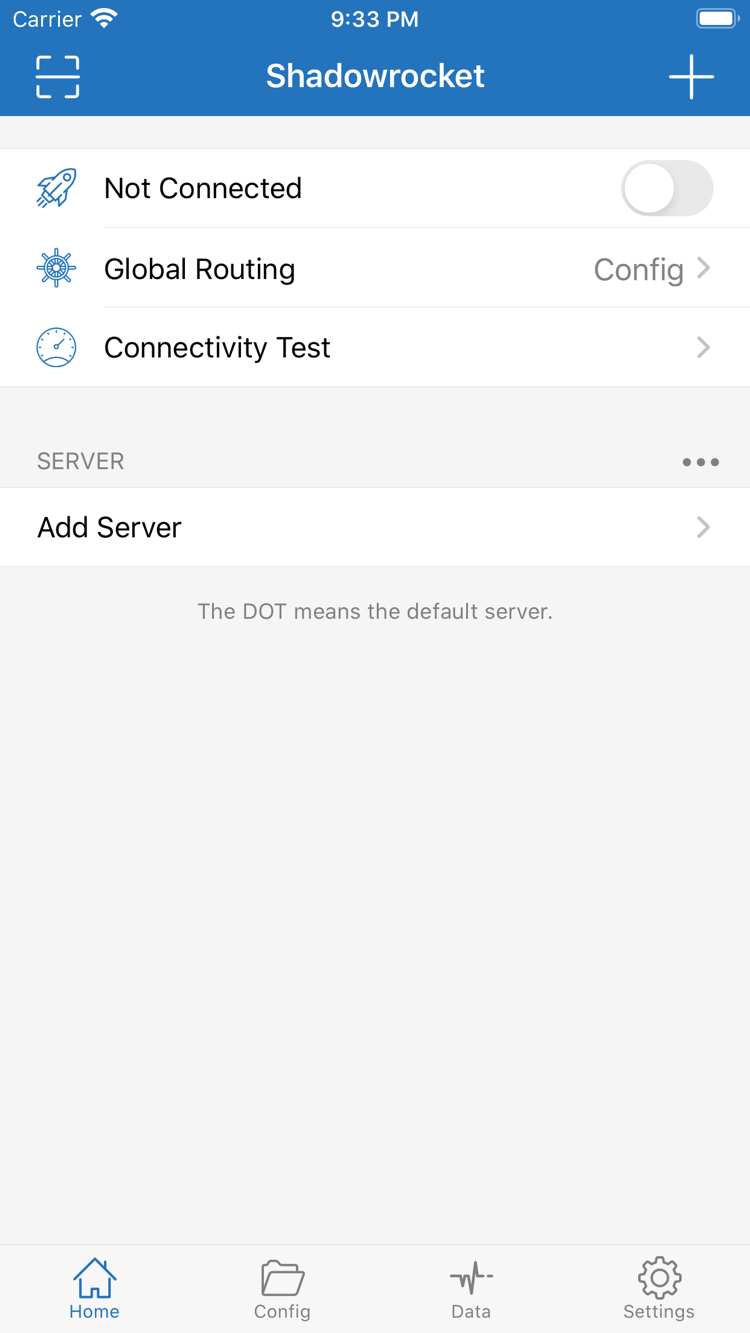
Check Global Routing first, then determine whether rules are being applied.
On a new device, look for Shadowrocket in your App Store purchases using the Apple ID used to buy it.
Server details, connection modes, and configuration rules are managed separately. When troubleshooting, identify which layer you are checking before changing the relevant settings.
Rule-based routing lets different requests be handled in different ways. In Config, review Rule and make sure Global Routing is set to Config for rules to determine where requests go. Rules are matched from top to bottom, and the policy for the first match is applied. More specific conditions generally belong above broader ones; FINAL handles requests that match none of the rules above it. When making changes, adjust one thing at a time, then compare real-world access with the app’s logs. This helps avoid mistaking a rule error for a server issue.
DOMAIN-SUFFIX,example.com,PROXYDOMAIN,api.example.org,DIRECTFINAL,PROXYOn Demand triggers connections based on configured conditions; it does not fix an unavailable server. Review On Demand in Settings and understand the current conditions before enabling it. First, establish a successful connection manually and confirm the server, mode, and rules behave as expected. If the connection starts again after you turn it off, check these settings and the VPN status in iOS. You can temporarily disable On Demand conditions while troubleshooting to prevent automatic triggers from interfering with tests.
Shadowrocket supports multiple protocols. When adding a server, use the details you already have rather than choosing a protocol at random. In Add Server, check Type first, then enter the corresponding Host, Port, and authentication fields. Required fields vary by protocol. Names such as Shadowsocks, VMess, VLESS, and Trojan identify connection formats; they do not indicate availability or speed. A successful import only means the details were recognized. Check that authentication, transport, and server-side configuration also match.
Importing a subscription is a convenient way to manage a group of servers you already have. In Subscribe, check that the subscription URL is complete and give each subscription a recognizable name. Updating a subscription retrieves its latest remote contents, so server names, counts, or parameters may change. Review the selected server after each update. Subscription URLs may contain access credentials; keep them on your own devices and do not post them publicly. Subscriptions and Config files serve different purposes, so do not choose between their import options based on how a link looks.
Config manages rules and related settings; it is not the same as a server subscription. Before editing, confirm which file is selected and keep a recoverable copy. Rules you tested in one file may not apply after switching to another. General, Rule, and Hosts sections serve different purposes, so make changes to address a specific issue. If you use iCloud sync, check the iCloud status on each device and confirm what is being synced. App purchases, server details, and configuration sync are separate processes.
Connectivity Test can help check a connection, but a response does not guarantee that every website will load. When troubleshooting, consider Global Routing, DNS, and rule logs to distinguish server connectivity, domain resolution, and policy selection. Diagnostics in Settings can help investigate further. Traffic statistics in Data can provide clues about request activity, but do not prove by themselves that a destination was reached. Before sharing troubleshooting details, remove subscription URLs, authentication fields, and other personal information. Include only what is needed to identify the issue.
Config handles requests according to the rules in the active configuration. Proxy routes requests through a proxy, while Direct connects without one. These modes affect how requests are handled, not server authentication details. To check your rules, select Config. To determine whether a rule is involved, you can temporarily switch modes for comparison, taking care to understand the impact, then restore the original setting when testing is complete. Scene controls separate, scenario-related settings; it is not one of these three basic modes.
A common troubleshooting mistake is to change the server, DNS, mode, and rules all at once. Even if access starts working again, it will be hard to tell which change helped. A more reliable approach is to record the original settings, choose one test destination, and change only one condition at a time. Then compare the app’s logs with the actual result. For sensitive tasks or access to local devices, also check that requests are using the intended policy.
Shadowrocket is available only through the App Store. Open the product page to verify the app, then check compatibility with your device. Always refer to the system requirements listed on the App Store page. Check purchase eligibility and device compatibility there as well; do not infer them from the device name alone.
Follow these steps in order, from installation through connection testing. When you connect for the first time, iOS may ask to add a VPN configuration. Confirm that Shadowrocket initiated the request before following the system prompts to authorize it. Check the app’s connection switch and actual website access separately.
See how to get Shadowrocket on iPhone →Use the same Apple ID you used to purchase Shadowrocket to find it in your App Store purchases. Availability is subject to the details shown on the App Store page. A larger screen may change how lists and details appear, but the steps for checking servers, Config, and Global Routing remain the same.
See how to get Shadowrocket on iPad →Shadowrocket is also available in the same App Store for Mac and Apple TV. Check the compatibility details on the App Store page.
See how to get the app →If the App Store does not show the expected purchase status, check which account is currently signed in there before reconfiguring your servers. The app purchase is tied to your store account; in-app subscriptions, rules, and connection settings are separate. When changing devices, check purchase restoration and configuration transfer separately rather than treating them as one step.
Before you begin, have your existing subscription or server details ready and make sure your device’s current network is working. This is a preview of the steps; the full guide explains what to expect at each stage and where to look if something goes wrong.
Choose an option based on the details you have: use Add Server to enter the fields for a single server, Subscribe to manage a group of servers, or Scan QR Code or the clipboard to import existing shared details. After saving, check that the expected item appears in the list, then verify Type, Host, Port, and authentication details. Do not paste a subscription URL into a single server’s Host field, and do not keep switching import options without first confirming the format.
Seeing a server name after importing only means the client saved the information. The connection may still fail if the address is no longer valid, authentication details do not match, or the subscription did not return recognizable content. Recheck each item against the details you already have; a visible entry does not mean the connection is ready.
Select the server you want to use, then confirm Global Routing. To route traffic according to configuration rules, choose Config and check the active Config file. Proxy and Direct handle requests through a proxy and connect directly, respectively. Before choosing a mode, decide where you expect this traffic to go, especially for local network resources and services that should be accessed directly. Do not judge whether a mode is appropriate by its name alone.
Servers and rules are separate settings. Changing servers does not necessarily change the policy for a particular domain, and changing rules does not correct a server password. Keep the configuration simple for your first test. Establish a result you can reproduce, then add custom conditions gradually.
Turn on the connection switch in Home, approve the VPN configuration when prompted, then use Connectivity Test as a check and visit a specific destination yourself. The switch being on, a test response, and a webpage loading are different indicators; consider them together. If only some destinations fail, focus on DNS and rules. If everything fails, start by checking server details and the underlying network.
For each test, record only the server, mode, and destination used. Do not share a full subscription URL or authentication details. Restore any temporary changes after testing. If the connection starts automatically after you turn it off, check whether On Demand conditions are still enabled.
This is the official Shadowrocket website and user manual. Shadowrocket is a closed-source commercial app; use its App Store product page to verify where to get it. This manual explains how to use the app. For the purchase price, device compatibility, and availability, refer to the current App Store listing.
On the product page, first confirm the name Shadowrocket, then check that the developer is Shadow Launch Technology Limited and the app ID in the page URL is 932747118. The app icon should match the official icon in this site’s header. Check search results carefully when names are similar; do not identify the app based on a single word in its title.
The app ID identifies the specific App Store listing, while the developer name and official icon provide additional checks. Verify all three together. If the search results are unclear, open the product page from this site’s app access guide and confirm the purchase details shown there.
The US store price is about $2.99, paid once to purchase the app. Prices appear in local currency in other storefronts; the final amount is shown at checkout. The purchase is associated with the Apple ID used at the time. Check the App Store page for purchase eligibility on iPhone and iPad. If you already own the app, check your purchase history under the same account before considering another purchase.
One-time purchase describes how the app is bought; it does not grant server access or determine a service term. Using the app’s rules, connections, and diagnostics still requires existing, valid server details. Check the product page for current prices and availability; any reference price in this manual is not the amount you will be charged.
The product page, checkout currency, and purchase availability may depend on your current App Store storefront and account status. If the page does not appear as expected, check your current store account, network, and device compatibility, then review any message from the App Store. Always refer to the system requirements listed on the App Store page; this manual does not list system requirements that may change.
Your device’s iCloud account and the account used for App Store purchases are separate. To check purchase history, look at the account actually signed in to the App Store. To check configuration sync, review the relevant iCloud settings. These accounts serve different purposes, so being signed in to one does not mean purchases or syncing through the other are complete.
After switching iPhones or iPads, or reinstalling the app, use the Apple ID you purchased it with to find Shadowrocket in your App Store purchases and download it again. If you see a payment prompt, check the account and purchase history first. App updates are also managed through the App Store. You can enable automatic updates if your system settings allow; check the store listing for update details.
Downloading the app again and restoring its in-app data are separate steps. Before making changes, keep your own subscription details and configuration backups. After restoring the app, check the current server, Config file, and Global Routing mode. Then test a real connection to confirm the transferred settings work as expected.
After the first import, common questions involve rule priority, restoring purchases, and DNS. Choose an article based on what you’re experiencing, and save your original settings before making changes.
Rules are checked from top to bottom and stop at the first match, with FINAL as the fallback. Use the DOMAIN-SUFFIX and IP-CIDR examples to check how to write and order the three policies.
The one-time app purchase is associated with the Apple ID used to buy it. After changing devices or deleting and reinstalling the app, find Shadowrocket in App Store purchases first, then check the in-app server and configuration separately.
If the test responds but webpages fail to resolve, check DNS settings and rule logs one by one to determine whether the issue is with domain resolution or request routing.